ChatGPT connects to Malleable the same way claude.ai does: one URL, an OAuth sign-in, nothing to install. Requires a paid ChatGPT plan (Plus or higher).
In Settings → Plugins → Browse plugins, hit + and create a plugin with https://malleable.cloud/api/mcp as the server URL and OAuth as the authentication.
Sign in with Malleable and approve access on the consent screen.
That's it — ChatGPT can now read and drive your board, calendar, and time tracking. The full walkthrough with screenshots is below.
Setup Walkthrough
1. Turn on developer mode
Custom MCP plugins live behind ChatGPT's developer mode. Open Settings → Security and login, scroll to Developer mode, and switch it on. The "elevated risk" badge is ChatGPT's standard label for any connector it hasn't reviewed itself.
2. Add a new plugin
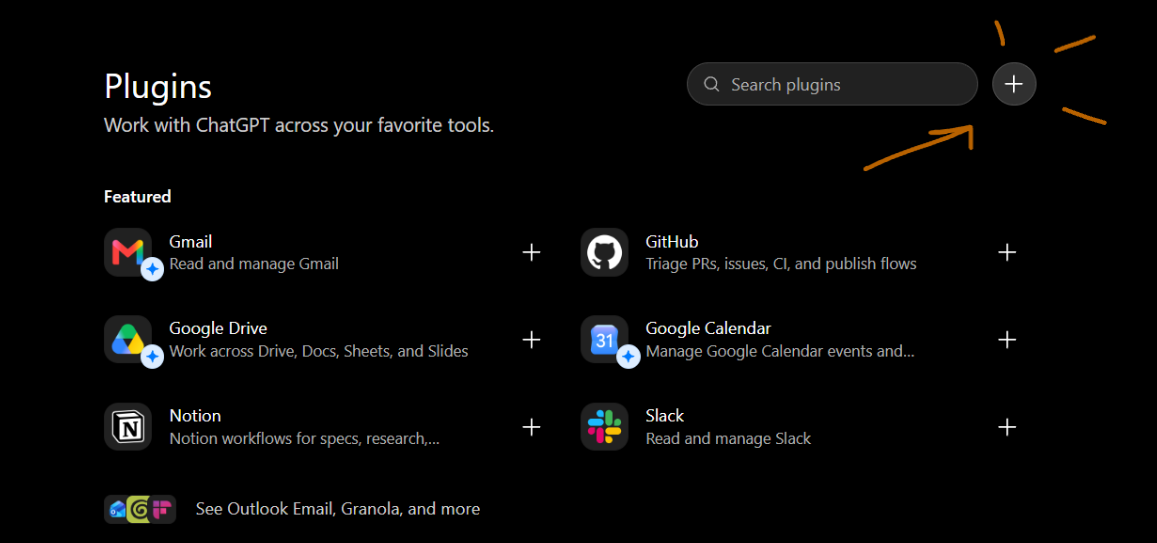
Go to Settings → Plugins → Browse plugins and hit the + button in the top right.
The + in the top right of the plugins gallery creates a custom plugin.
3. Point it at Malleable
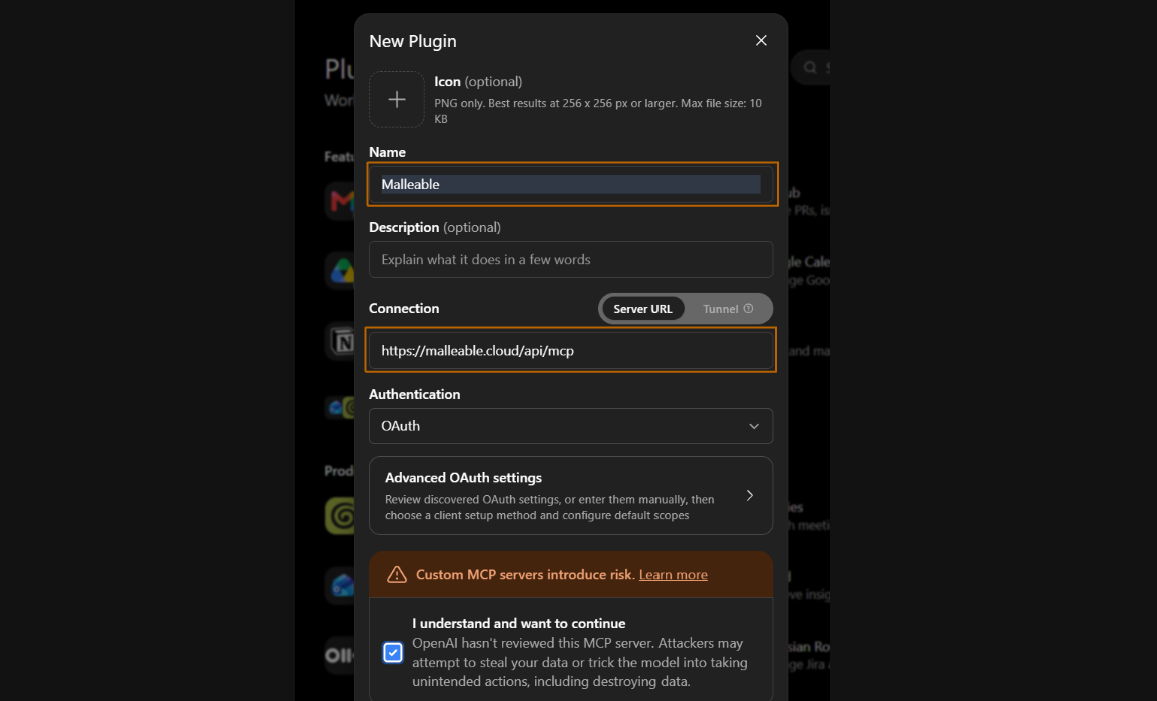
Name it Malleable, set the server URL to https://malleable.cloud/api/mcp, leave authentication on OAuth (ChatGPT discovers everything else itself), acknowledge the risk notice, and hit Create.
Server URL + OAuth — no keys to paste, no advanced settings needed.
4. Sign in with Malleable
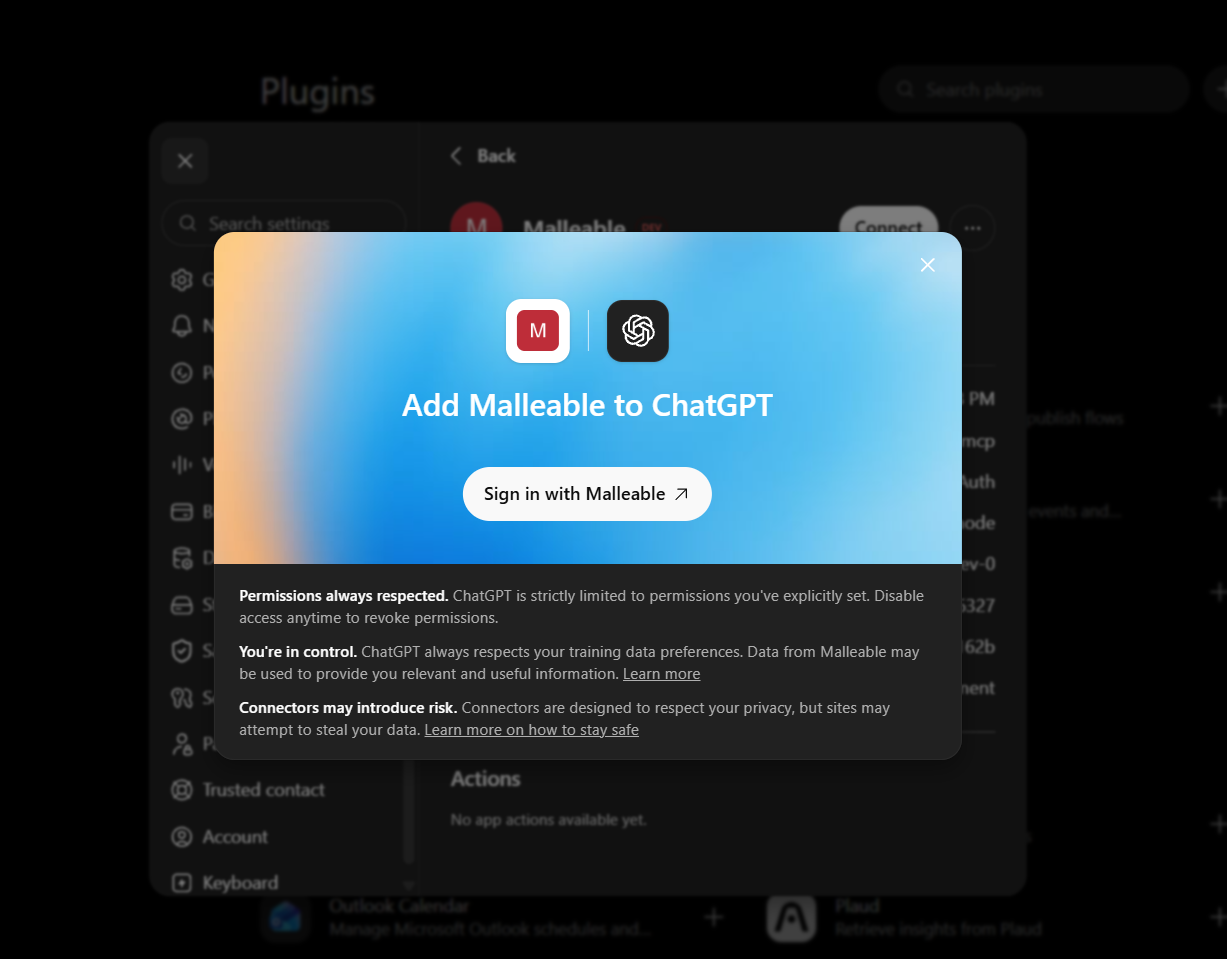
ChatGPT hands you to Malleable's consent screen. Sign in, pick the access level you want to grant (read-only or full), and approve.
The OAuth handoff — approve on Malleable's consent screen and you're done.
5. Connected
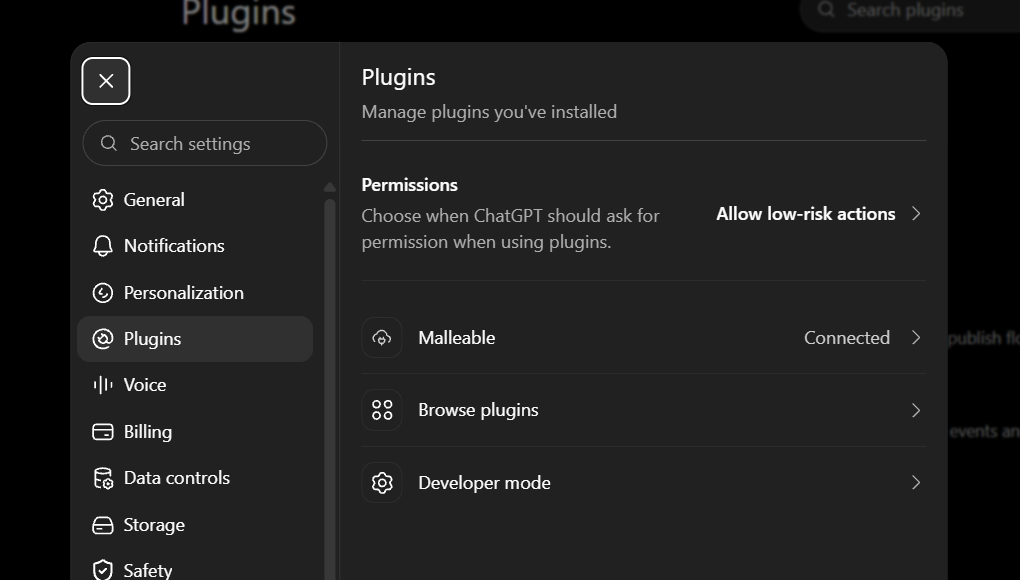
After you grant read-only or full access on the Malleable side, ChatGPT drops you back in Settings → Plugins with Malleable showing as connected. Ask ChatGPT what's on your board.
The confirmation after granting access on the Malleable consent screen. The Permissions row controls how often ChatGPT asks before acting.
What ChatGPT Can Do
With developer mode (the walkthrough above)
ChatGPT sees the full tool surface — the same board, task, calendar, bucket, time-tracking, and collab tools the claude.ai connector gets. Read tools run freely; anything that writes goes through ChatGPT's own confirmation prompts, tunable under Settings → Plugins → Permissions.
Without developer mode
ChatGPT's standard connector mode (including deep research) uses two purpose-built read-only tools, search and fetch, which look across your tasks, calendar events, and bucket notes and cite results with links back into Malleable.
Credits
Every tool call ChatGPT makes is a deterministic API call — none of them spend Malleable AI credits. The model doing the thinking is ChatGPT's own.